Using the Visual Interface
This document mainly introduces how to start and use the visual interface of AgentSociety.
Online Platform
The online platform for AgentSociety is https://agentsociety.fiblab.net, where users can use AgentSociety for simulation (requiring payment for large model fees and machine time fees). Its user experience is the same as running AgentSociety’s visual interface locally, but without needing to install AgentSociety.
Starting the Visual Interface
The startup of the visual interface has the same configuration items as the env field in the configuration file used in command line execution.
The visual interface configuration file contains the following main parameters:
addr: Listening address and port of the visual interfaceenv.db.enabled: Whether to enable database functionalityenv.db.db_type: Database type (such as SQLite, PostgreSQL, etc.)env.home_dir: AgentSociety data storage directory, including sqlite database files, HuggingFace model files, various data managed through the visual interface, etc., stored by default in theagentsociety_datafolder under the current directory
addr: 127.0.0.1:8080
env:
  db:
    enabled: true
    db_type: sqlite
  home_dir: ./agentsociety_data
Assuming the configuration file is stored as ./ui.yaml, the visual interface can be started with the following command:
agentsociety ui -c ./ui.yaml
After startup, you can access http://127.0.0.1:8080 in your browser to enter the visual interface.
Tip
The addr filled in the visual interface represents the listening address and port on the machine where the program is running. If the browser is not running on the same machine, please use network technologies such as port forwarding to access the remote server.
In addition, if the database configuration, home_dir, and other configurations set when starting the visual interface are the same as those used in the programming usage method, then the visual interface will be able to load and view the results simulated through the programming usage method.
Visual Interface Features
The AgentSociety visual interface provides visual configuration functions for all the configurations needed to run simulation experiments, including:
LLM: Configure the large language model API services used during simulation
Map: Import and manage map data required for simulation
Agent: Import and manage agent profiles, agent templates, and agent configurations used to run experiments
Workflow: Configure the process, environment parameters, and other core settings for simulation experiments
Experiment: Display all completed experiment records. Clicking on a specific experiment will take you to a detailed interactive page for viewing and analyzing experiment results.
Tip
All the configurations in the AgentSociety visual interface have the same meaning as the configuration items in the programming usage method. Users can refer to Experiment Configuration to understand the meaning of each configuration.
LLM API Configuration Page

In the LLM configuration list page, you can:
Browse all configured LLM APIs
Perform edit, copy, delete, export, and other operations on existing configurations through the
ActionscolumnAdd new LLM API configuration through the
+ Newbutton in the upper right corner
Among them, the page for creating a new LLM API configuration is as follows: 
Creating a new LLM API configuration requires completing the following steps:
Select LLM API service provider
Configure API key
Select model version
Important Tips
Since AgentSociety experiments require a large number of large model API accesses, general API services may struggle to meet high concurrency demands. Recommendations:
Select API services with matching throughput based on experiment scale
Configure multiple API keys to achieve load balancing
Consider using enterprise-level API services to obtain higher call limits
Map Configuration Page

The visual interface supports uploading, downloading, and previewing map functions. See the Custom Maps document for map data sources.
Tip
Previewing the map will redirect to the MOSS platform, which provides a pure browser environment for map viewing and editing.
Agent Configuration Page

Agents are the most critical component of AgentSociety, carrying the behaviors and interaction logic of various virtual characters in the virtual society. Agent configuration in the visual interface is divided into three parts:
Agent Profile File Management
Agent Template Management
Agent Configuration Management
Agent Profile File Management

Agent profiles are descriptions of information for each citizen agent created in the virtual world, including name, gender, age, education level, occupation, marital status, personality role, background story, and other content. This information constitutes the agent’s self-awareness and is the foundation for all agent behaviors and decisions.
Agent profile files need to be constructed locally. See the agent profiles document for the format.
The agent profile file management page supports uploading and downloading agent profiles.
Agent Template Management


The agent design in AgentSociety is divided into two hierarchical structures: Block-Agent. Agent is responsible for coordinating and managing multiple Blocks, while each Block focuses on implementing specific functions. Complex agent behaviors can be achieved by combining different Blocks through Agent. Additionally, both Agent and Block support setting a series of parameters to control their execution behavior. These features can be found in detailed explanations in the agent development document.
To help users more conveniently configure agents (combinations of Agent and Block), AgentSociety provides agent template management functionality, allowing users to configure agent templates through the visual interface. During the agent template configuration process, the following steps are required:
Select agent type;
Select agent class (i.e., select the implementation of
Agent);Configure preset parameters in the agent class;
Select the
Blocksincluded in the agent;Configure preset parameters in the
Block;Save the agent template.
The agent template management page supports common management functions for agent templates such as adding, viewing, exporting, and deleting.
Agent Development
The agent development document introduces the agent development process in AgentSociety, including agent concepts, design, and implementation logic.
Agent Configuration
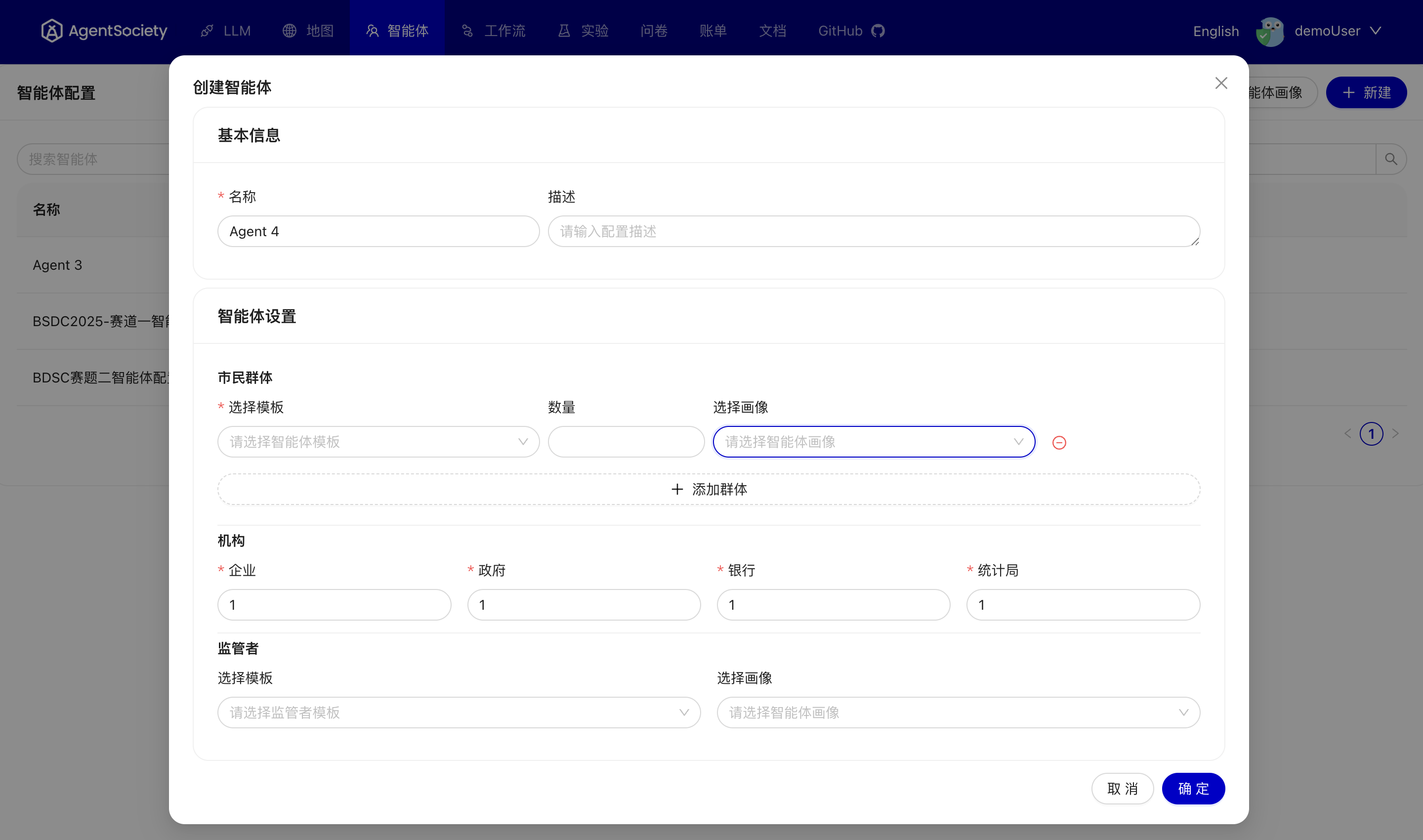
The agent configuration that can be used to start experiments is a combination of “agent template + agent profile”. The agent template defines the agent’s operational logic, LLM prompts, etc., providing a basic framework for the agent’s behavior in the virtual world. The agent profile further provides rich character information, including background stories, for each agent, concretizing the abstract concepts in the agent template.
Therefore, in the agent configuration page, users can add multiple combinations of “agent template + agent profile” to complete the configuration. Simple quantity configurations are provided for economic related enterprises, governments, banks, and statistical bureaus.
Similar to other configuration pages, the agent configuration page also supports common management functions such as adding, viewing, exporting, and deleting.
Workflow Configuration

Workflow defines the process of simulation experiments. Through workflows, simulation progress can be controlled, interventions can be performed, and experimental data can be collected.
What is an Experiment?
Experiment is the core concept in AgentSociety used for simulation. Experiment configuration defines the core settings of simulation experiments, including the process and environment parameters. For detailed explanation of experiments, see the experiment design document.
The workflow configuration management page provides viewing, editing, copying, deleting, and exporting of workflow configurations.
Among these, creating a new workflow is the main function of the interface:
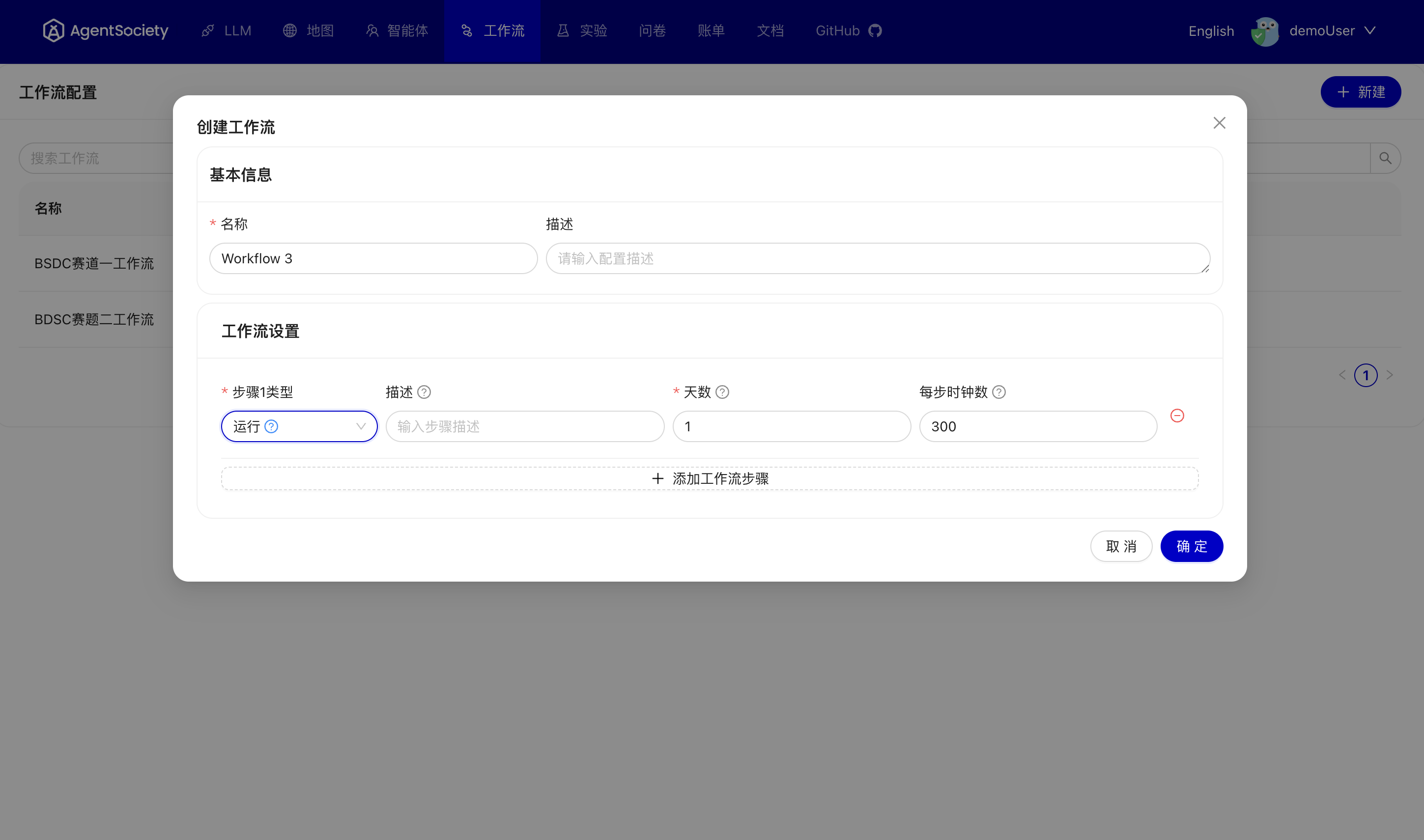
Creating a new workflow requires completing the following steps:
Enter workflow name and description information
Loop through the following process
Add step
Select the corresponding step type based on experimental requirements
Configure node parameters: Fill in the corresponding configuration parameters based on the selected step type. For specific field meanings, refer to the Experiment Configuration - Workflow Step Types document
Save
Experiment Management
Create Experiment
The experiment creation interface is shown in the figure below: 
To start an experiment, the following four configuration items need to be configured in advance:
LLM Configuration
Map Configuration
Agent Configuration
Workflow Configuration
After completing the selection of all four configuration items, click the Start Experiment button to start the experiment. All configurations will be sent to the visual interface program and run as independent processes on the machine where the visual interface program is started. Process ID, logs, and other information during the run will be stored in the webui/executor folder under the home_dir of the visual interface configuration.
After the simulation process starts successfully, the page will automatically jump to the experiment management page to monitor the experiment’s running status.
Experiment Management

In the experiment management page, you can view the running status of all experiments recorded in the database and the consumed LLM Tokens, while the operation bar provides rich experiment management functions:
View: Enter the visualization interface of experiment results, where you can observe agent movement trajectories, state changes, inner activities, agent-to-agent dialogues, etc., and view global metric changesDetails: View detailed information such as experiment startup configuration and runtime errorsView Logs: View experiment runtime logsExport Artifacts: Export data saved through thesave_contextmechanism, which is mainly implemented by writing specific code, but can also be triggered through Experiment Configuration - Save Agent Context.Export All: Export all content written to the database during the simulation process for data analysis, including agent states, agent dialogues, global prompts, etc., at each simulation moment. For detailed content, see the Data Analysis document.Delete: Delete all related data of the experiment from the database
If you enter the visualization interface through the View button, you can intuitively observe agent movement trajectories, state changes, inner activities, agent-to-agent dialogues, etc.
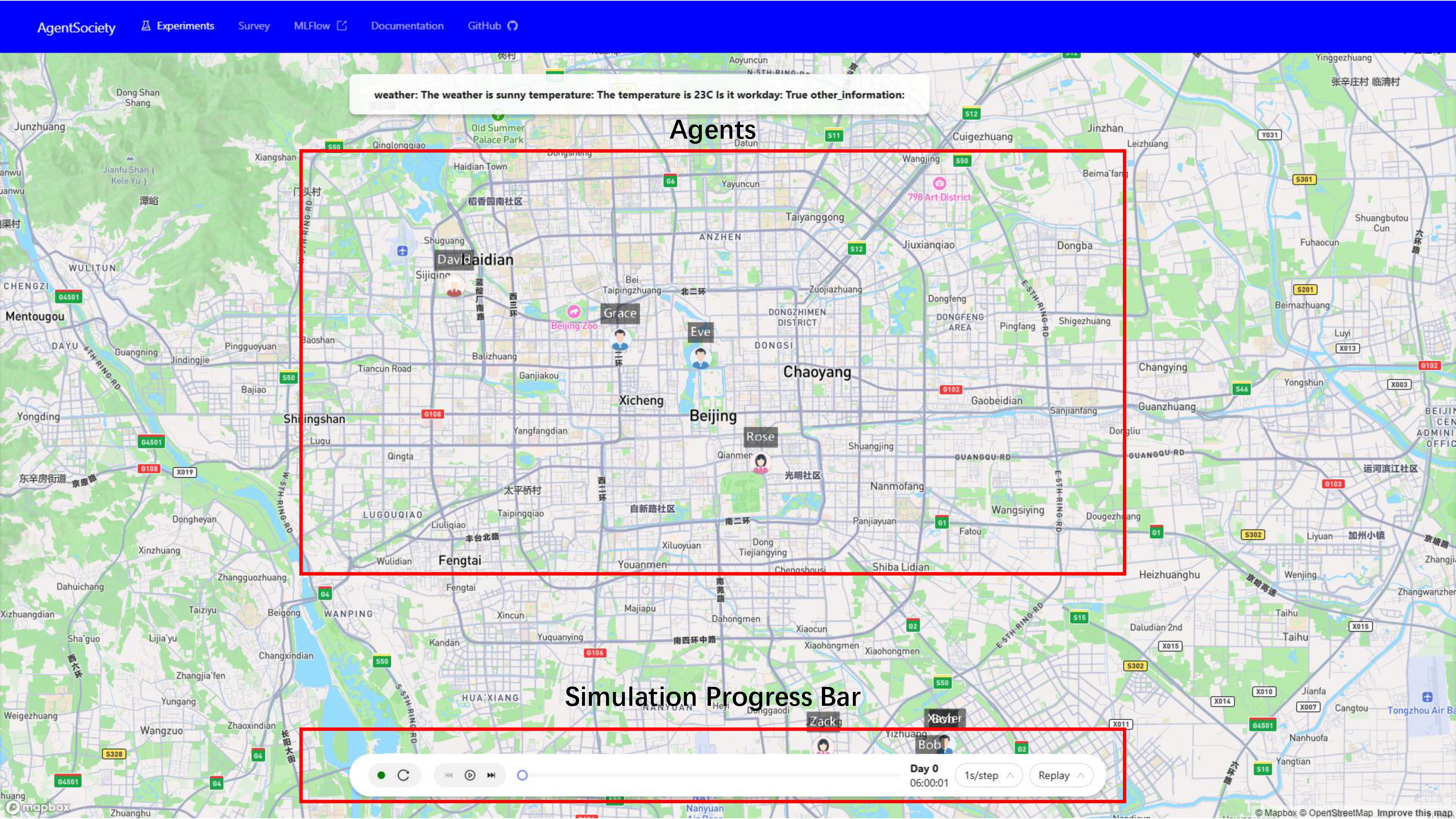
If you click on an agent’s avatar, you can view more detailed information about that agent and interact with it:
Conduct interviews with specific agents
Send survey questionnaires to agents and collect their responses
